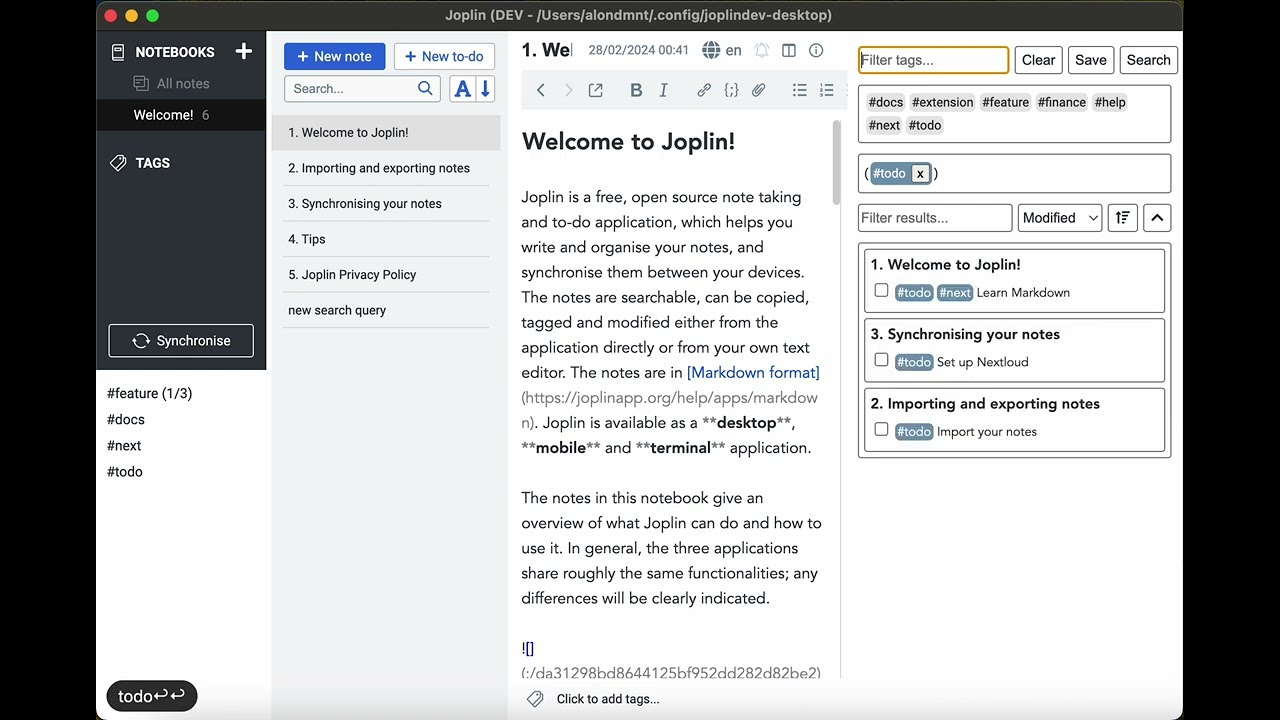
Type inline tags or frontmatter in the note editor. View your tagged paragraphs and tasks / TODOs in a search panel, or in a generated note / kanban. Build a table view / database from notes and tags. Convert between Obsidian tags and Joplin tags.
Add tags to your notes: Type #project, #todo, #idea, or any #tag-name in your note text.
Search your tags: In the search panel, click a tag to add it to your query, then press Enter to search. Results show all matching paragraphs across your notes.
Interact with results: Click checkboxes to toggle task states, or right-click on tags and results for more options (edit tags, switch between 6 task states, show/hide panel sections).
Thanks for this new plugin. I tested it and it does convert those # into tags.
One thing I find is that for web clippings with html codes, such at "color:#8c0000," the plugin converts "8c0000" into tags. So I wind up with hundreds of new tags.
Also I couldn't find the option to choose between converting one note or all notes.
Good point regarding html colors. There are a few additional cases where tag parsing can be improved, I'll work on it.
I should have mentioned that commands are accessible via the Tools-->Tag Navigator. You'll find two separate conversion commands: one for a single note, and one for all notes.
I installed the plugin. First of all, thank you for the recommendation, and creating a YouTube video for it is truly great.
Unfortunately, the plugin didn't work for my tags. I don't know why, but it shows irrelevant tags with names that don't belong to me. Additionally, the plugin opens not just one but two windows side by side, which is problematic in terms of space. You can find the screenshot attached.
Addition: Also, the box where tags are written is very narrow and cannot be expanded.
I see that this is a recurring problem, so I added to v0.2.1 a setting to ignore HTML notes (it is on by default). Hopefully this will clean up your list of tags. This version should become available to download in the next hour.
However, what I'd like to verify is that even if there are extra tags that you don't recognise, inline tags that appear in your text are detected by the plugin. Example: At the end of this sentence there is an inline-tag. #tag
The panels have different purposes. One for navigating between inline tags in the currently open note (I keep this on by default), and one for searching (which I only open when I want to search for tags). You can hide or show these panels by going to the Tools menu, the Tag Navigator sub-menu, and selecting Toggle inline tags search panel or Toggle inline tags navigation panel.
I don't know of a way in Joplin to set the panel width in advance (this happens with other plugins as well), but you can select from the View menu the option to Change application layout which allows you to organize all Joplin panels, stack them on top of one another, or change their width.
Note that you can search for tags if you start typing in the Filter tags... text box, and that the tag list can be scrolled to view all tags.
once a note is opened, if it has an embedded query the results will appear in the tag search panel
you may use notes as "search bookmarks" (for example, using the Favorites plugin), or you may store relevant search queries next to the content of regular notes (e.g., project notes)
Fair enough. Personally, I don't mind the extra tags (I use the filter to select them anyway), and prefer being able to find the tags I'm interested in also in code blocks.
You have 3 options in the latest v0.2.3 to handle this:
Ignore tags that appear in code blocks: this is on by default and will solve your issue.
Ignore tags that don't appear at least X times in your notes: e.g., if a tag appears only once maybe it's a false detection.
Use a different definition for tags: e.g., use @ instead of #, or any other format of your choosing.
Tested and working great! The dedicated search panel can now detect the new inline tags within seconds after being written/created in the editor view. Working on wysiwyg editor, too!
Convert Joplin tags to inline tags, works like a treat, too. And it is clean and real fast, as well.
My only gripe at this point would be how to deal with tag with spaces.
This great plugin seems to be blending the two worlds very well (Joplin tags + inline tags). The only strong difference is, though, that one allows spaces (Joplin) and the other don't (inline)... so when converting Joplin tags with spaces into inline tags, some words remain orphaned of their # and of the word that was before them. This is not a huge deal, but then if you keep the plugin's "convert all inline tags to Joplin tags" feature on, that will effectively create new Joplin tags, too.
That would be the only thing I can point out now... for the rest what a great and useful plugin
I'll wait a bit to test this out as soon as I have a spare machine (or spare user profile)? As I also wanted to test the latest Joplin pre-release. But I'm not sure when will this be. Also, I wanna be more confident with your plugin as it is (stock), once I know very well how stock behaves, I may dig into the experimental stuff, too.
P.s. Any chance that the highlighted #tag CSS trick may one day find a relevant workaround in wysiwyg, too?
Alon, this plugin is really great.
For myself, I don't have a lot of screen real estate. Can you add an option that allows a user that has saved a query in a note, to see the results of that query in either the text below the query or in a new note specified by the query? That would bring everything closer to the concept of a "Smart Folder" that instead of showing pages with searched tags, would show the inline text with the tag. I don't think I've seen that feature anywhere and would be something worth shouting about for Joplin.