There seem to be 3 different editors in joplin and i cannot tell which one i am using at any one time - where is the sign to tell you which editor you are using currently?
shows colored HTML and format elements (split screen left)
shows text formatted properly with no elements (split screen right).
shows plain text, no elements or formatting (single screen editor. i want to obviously use the one formatted correctly with no formatting elements, but i only see it in split screen. thanks.
1. There are two editors, the markdown editor and the rich text editor, you can switch between them with the buttons on the top right (M icon is the markdown editor, other one is the rich text editor)
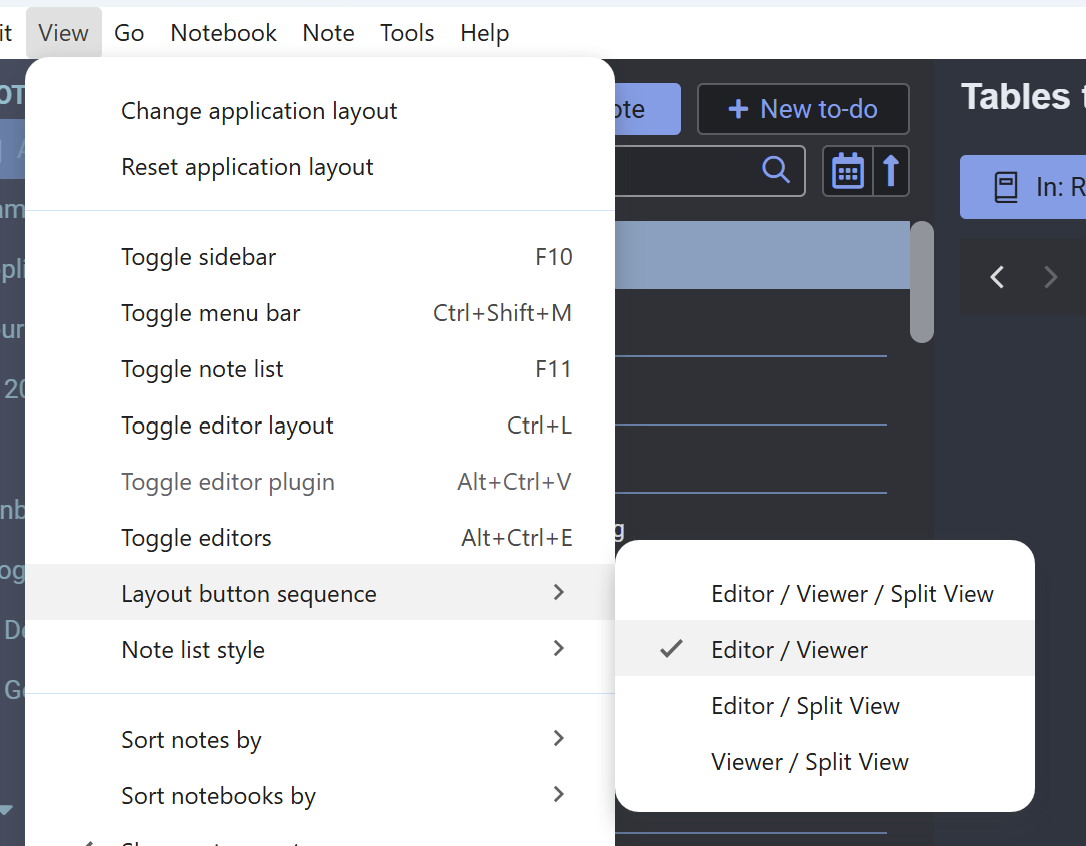
The layouts that it toggles through (editor only, viewer only, split view) when using "Toggle editor layout" can be changed under View | Layout button sequence:
If you don't like/don't use the split view, you can set it to "Editor/Viewer" as in the above screenshot so that it only toggles between the editor only ("plain text") and viewer only modes.
Note that on mobile it works differently. It always defaults to "Reading" mode when accessing a note, and clicking the edit button will open the markdown editor by default (and there are no separate markdown editor views on mobile). However, you can switch to the rich text editor by clicking the hamburger menu on the top right | Edit as Rich Text. IIRC on mobile it will remember your last used editor so next time you click the edit button it will open that editor.